Guides · · 3 min read
Hear the island: sound in Malta Living
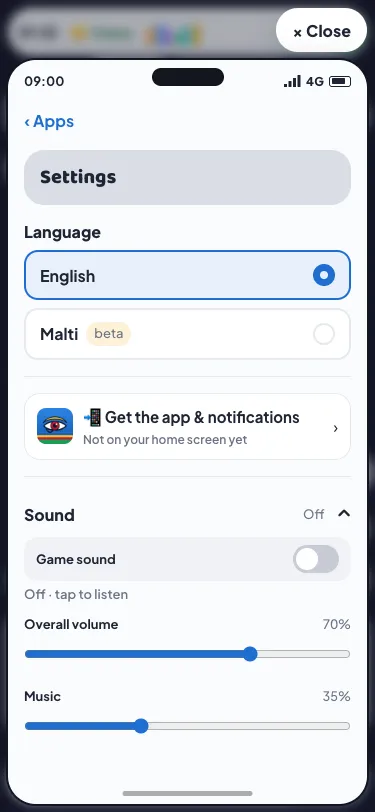
Sound in Malta Living gives the places around you a quieter or busier character. Turn it on in Phone → Settings → Sound: a home, the coast, town streets and nightlife have different sound scenes. Four original instrumental themes follow the Malta day, with gentler arrangements at night.
The sound follows where your character is. Looking at a different town on the map does not move what you hear. Opening your phone does not restart the music. Moving between scenes fades the sound, and quiet heritage places give the automatic soundtrack a rest.
Set your own mix
The small speaker button mutes or turns on sound in one tap. On a phone it shares the right-hand control column; on a larger screen it sits in the top bar. Turning sound on briefly points you to Phone → Settings → Sound for the full mix. Inside Phone → Settings, Sound starts folded: tap its row to expand it, leaving the other settings easy to reach. Visitors have a speaker button on the public map and login form too.
Overall volume changes the whole game mix. Music, World ambience and Effects each have a separate slider. You can hear the sea with the music off, keep effects without the background atmosphere, or play completely muted.
Play the game’s soundtrack switches the background score alone. It leaves the Music app’s song previews and your party’s music available. Mono audio combines the game’s own sound; remote song previews follow your device’s stereo or mono setting. Some phones also keep preview volume under their device controls.
Your choices stay on this device. Sound starts off on a new device, and a saved enabled mix waits for an interaction when you return. A deliberate Play in Music, a profile or a party also turns sound on. When the game is hidden, it pauses its audio.
Separate controls and a game that still works muted follow established game audio accessibility guidance. Important moments keep their visible cues.
Music that leaves room for you
The original score has four themes: Limestone morning, Harbour afterglow, Balcony at night and Backstreet lights. Each has a longer arrangement with quieter passages. The game loads only the cue it needs after sound is enabled.
If you play a song in the Music app or start the music at a house party, it takes over from the automatic score. When it stops, the score returns. Two manually chosen music sessions do not compete over each other.
The sounds add atmosphere. They do not change your needs, rewards or the cost of an activity. You can still play every part of the game in silence.
Read about the phone apps, discover real places in the game, or start with the Malta life simulator guide. Then play Malta Living free and find your mix.
Questions people ask
Where are the sound controls in Malta Living?
Open Phone, choose Settings and scroll to Sound. Turn on Game sound to listen, then adjust the four sliders to suit your surroundings. Test effects plays a short sound so you can check the effects level without waiting for something to happen in the world.
Can I keep the island ambience without the soundtrack?
Yes. Switch off Play the game’s soundtrack and leave World ambience above zero. That keeps the atmosphere around your character while removing the automatic instrumental score. Music previews remain available when you deliberately play them; set Music to zero if you want those silent too.
Does game sound reveal my music to other players?
Listening is a device preference. Turning on sound or playing a preview does not publish a song on your profile. Sharing a song status remains a separate choice in Music. Likewise, muting your own game does not turn off the music another guest hears at a party.