Behind the scenes · · 3 min read
Sunshine Club: a warmer everyday view
The first Sunshine Club game view update brings warm paper, coral navigation and a clearer place for your picture, wallet and needs. Open your phone and the familiar app colours are still there, with tidier shapes and spacing. It is a fresh finish for the controls you use throughout a day in Malta Living.
The direction is sunny and sociable. The island should feel inviting, and the controls should be easy to recognise when you return. This first update starts with the shared controls around the world and the phone's app launcher. Individual app pages and activities have their own layouts, so their redesigns follow separately.
Your day, together at the top
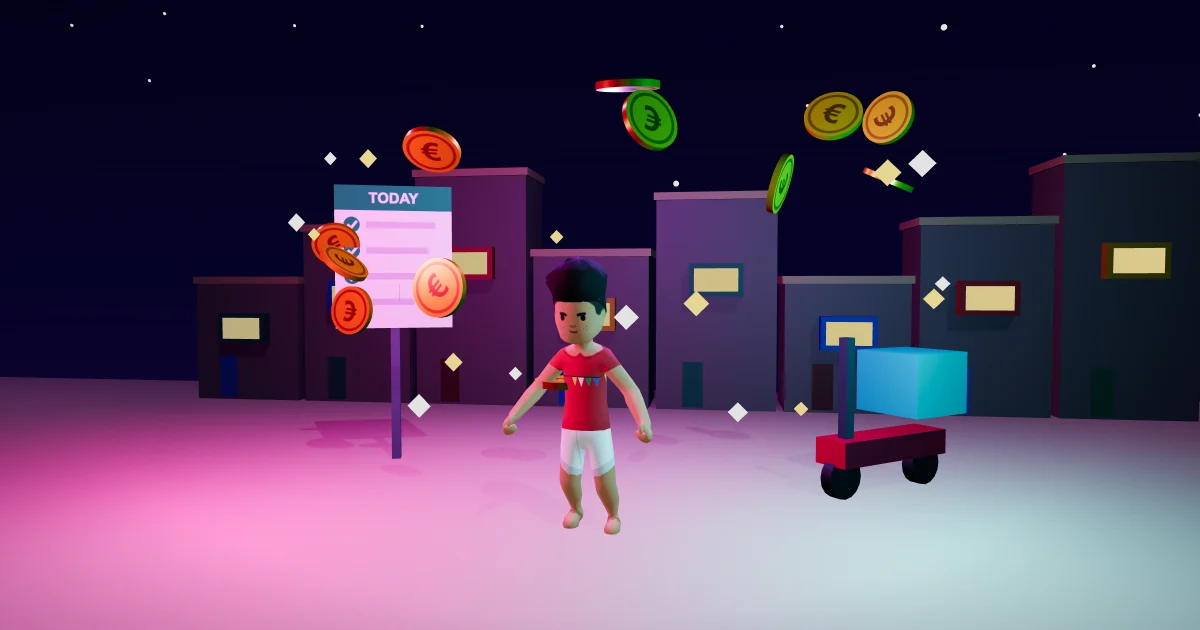
Your picture and name sit beside your wallet. The mood and Malta clock stay close by, while six small horizontal bars give your needs a shared place underneath. Each need keeps its colour and has a symbol beside its bar. You can glance at the group while keeping your room or the place you are visiting in view.
Tap your picture or the needs bars to open your needs. Tap the wallet to see the exact balance, including cents, and use the plus beside it to open top-ups. These are the same destinations you already know; the new arrangement makes the everyday controls easier to find together.
Looking for something useful to do with that energy? The daily missions guide explains how the game's existing activities fit into a day. The wider Malta Living guide is there when you want an overview of work, homes and friends.
Familiar apps with a fresh finish
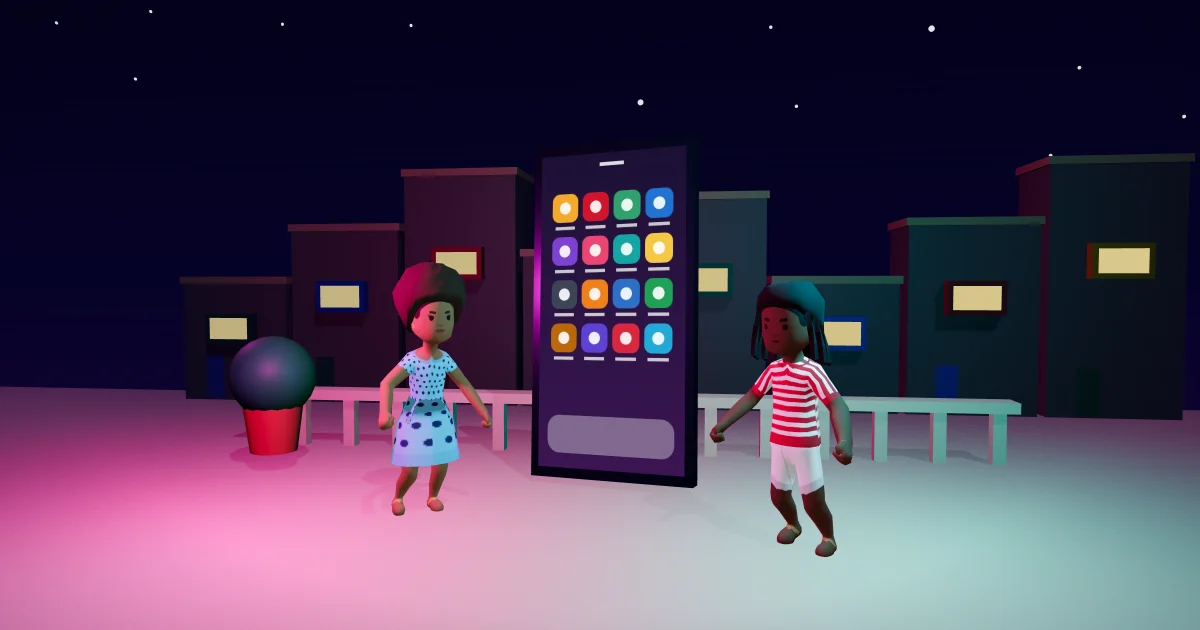
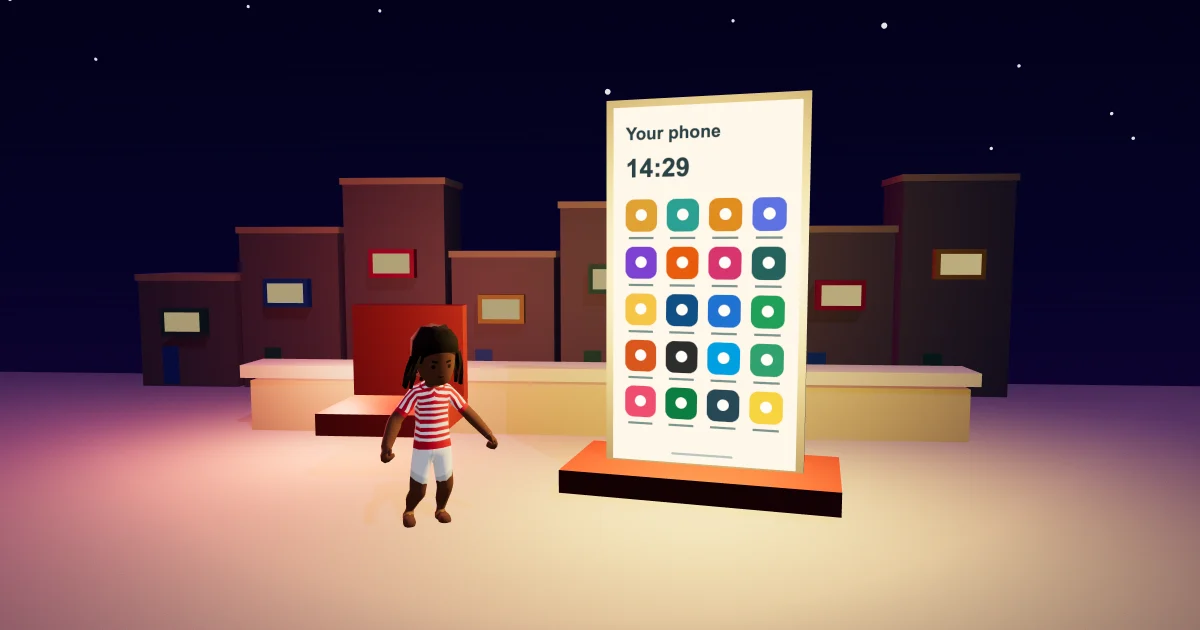
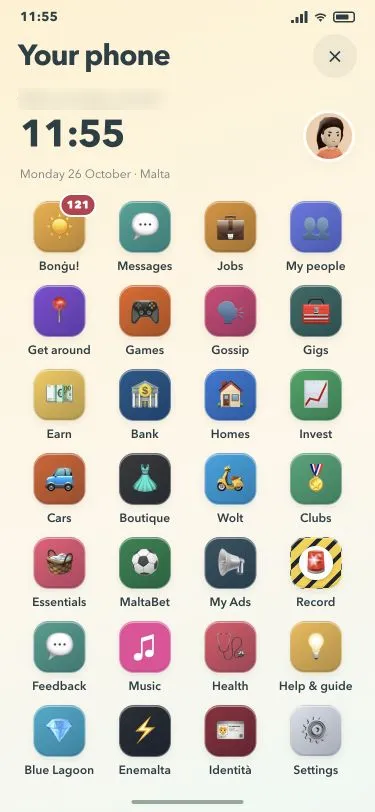
The phone launcher has a cream background, a large clock and your character's picture. The app tiles keep their existing colours, pictograms and order. Messages still has its speech bubble, Bank its bank building, and Record its caution stripes. The polish is in the tile edges, proportions and space around each label.
Scroll to reach the lower app rows on a small screen. The close button returns you to the world; the home bar brings you back to the app grid after opening an app. Your status and the existing installation card can still appear when they apply to you.
The phone apps guide explains what lives inside those familiar icons. This update concentrates on the launcher, so an app's existing content and controls remain available when you open it.
Compact cards, comfortable controls
The world matters when a card opens. Shared pop-up cards use tighter spacing and take the height their content needs. Longer cards scroll inside their frame, above the navigation, instead of growing without a limit over the scene.
Making a card compact also means keeping its buttons comfortable to use. The shared controls aim for a touch area of at least 44 by 44 CSS pixels, following the W3C's enhanced target-size guidance. A small visible symbol can have a larger area around it for your finger.
The bottom navigation keeps Home, Buy, Map and Phone in their familiar places, with coral showing the selected destination. If your next stop is your room, the Buy mode guide explains the existing furnishing controls. You can play Malta Living free and try the new everyday view yourself.
Questions people ask
Where are my needs in the Sunshine Club view?
They are the six coloured horizontal bars in the top HUD. Tap the bars or your picture to open your needs.
Does Sunshine Club move the phone apps again?
The launcher keeps the current app order, colours and pictograms. Its tile shapes and spacing have been polished.
How do I return from the phone to the world?
Use the close button. The phone's home bar returns to the app launcher when you are inside an app.