Guides · · 3 min read
Comment and Share, right under every Gossip post
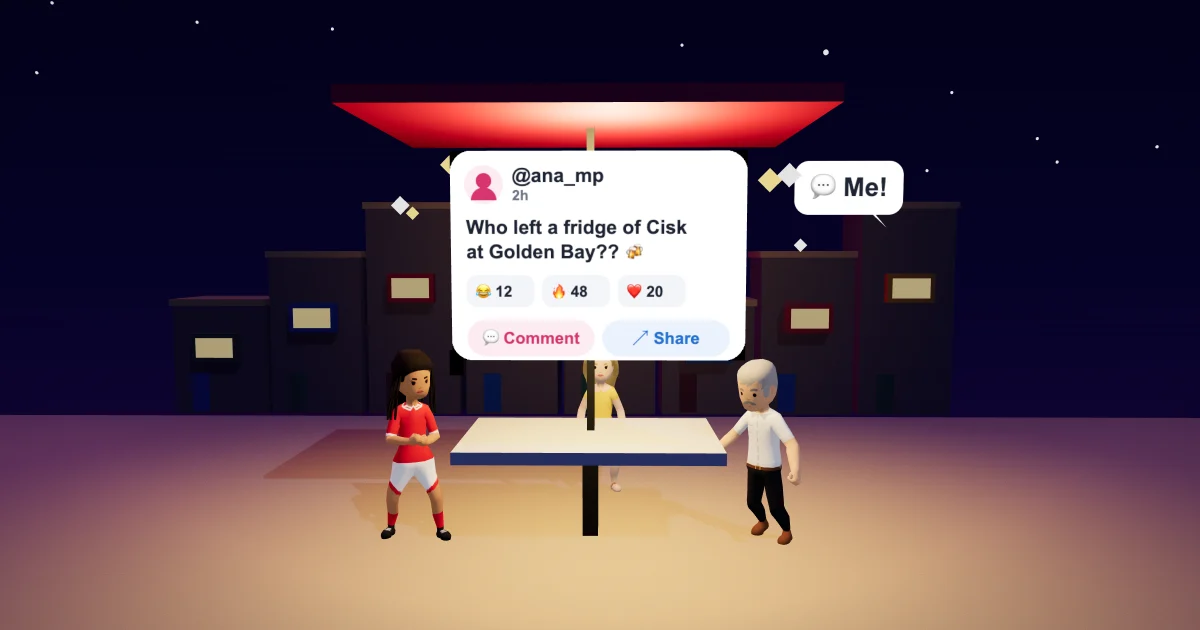
Want to comment on Gossip posts, or send one to a friend, without hunting for the button? Gossip is where Malta Living talks: who left a fridge of Cisk at Golden Bay, who just took over a restaurant, which bus skipped whom. Now every post has two clear buttons right under it, Comment and Share, so joining in or passing it on takes one tap, from the feed, without opening anything first.
Comment, in words
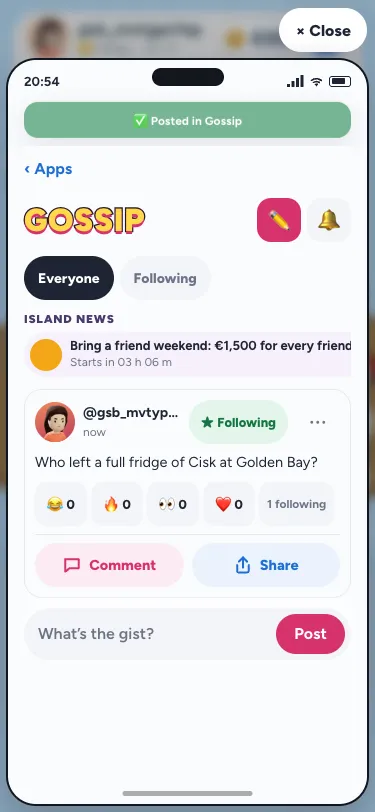
Under a post's reactions there's now a pink Comment button with the number of comments beside it. It used to be a little 💬 and a number at the end of the reactions, and it looked like just another reaction. Tap Comment and the post opens with its comments and the box to add yours (with emoji, of course).
Share, from the feed
Next to it, the blue Share button opens your phone's own share sheet with the post's link: WhatsApp, Instagram, X, a text, anywhere. You don't have to open the post first any more. The link opens straight on the post for whoever taps it, even someone who doesn't play yet, and if they join through it they count as your invite.
On a computer, where there's no share sheet, Share copies the link and says "Link copied".
Share and Copy link in ⋯
Tap ⋯ on a post and the sheet now starts with two tiles: Share, the same as the button, and Copy link, which always copies the link, for pasting into a group chat or an email. Following the post and reporting it are still there, under them.
A post that's hidden while a moderator looks at it has no Share: its link wouldn't open for anyone else.
Why we changed it
Two things got in the way. First, conversations were easy to miss: a post with ten replies looked the same as one with none, because the count sat among the reactions and nobody read it as a way in. Second, the posts you'd want to send to friends, the funniest and the most outrageous, were the ones you had to open, scroll and look for Share inside. A post is the thing you share, so the button belongs on the post.
The two buttons sit under the reactions, half the width each, big enough for a thumb. Comment is pink like the rest of Gossip; Share is blue like every other share in the game, so it reads the same wherever you meet it. Inside a post the Share button stays under it, and the box to comment sits below the comments.
What your friend sees
When a friend opens a post you shared, they see the post and its first replies straight away, read only, even without an account. To react or reply they join, and the game takes them back to that post. The link carries your name, so a friend who signs up through it is your invite, with the same welcome and limits as your invite link.
More about Gossip
Gossip is one of the apps on your phone in the game; the phone's apps has them all, and clubs, friends and Gossip is the guide to the social side. New to the game? Start with what Malta Living is. A shared link shows a card in chat apps through Open Graph tags.
Questions people ask
Where is the comment button on a Gossip post?
Under the post's reactions, on the left: the pink Comment button, with the number of comments beside it. Tap it to open the post and its comments.
How do I copy a Gossip post's link?
Tap ⋯ on the post, then Copy link. It copies the link even on a phone that can share, ready to paste into a group chat or an email.
Why can't I share some posts?
A post that's hidden while a moderator looks at it has no Share, because its link wouldn't open for anyone else. Once a moderator clears it, Share is back.